Pixelate parts of an image online
Free
Brush or box over faces, license plates, ID numbers and more to pixelate them, or pixelate the whole picture. Runs in your browser, so your image is not uploaded, and it is free.
Highlights
- Brush, box-select, or pixelate the whole image
- Adjustable block size
- Undo and redo
- Runs in your browser; your image is not uploaded
- Free to use
Examples
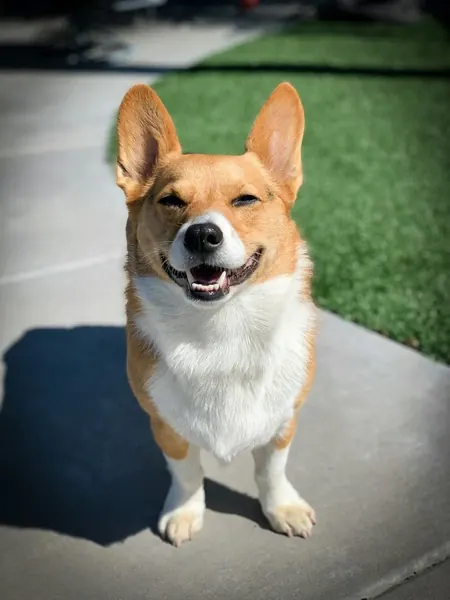
Original 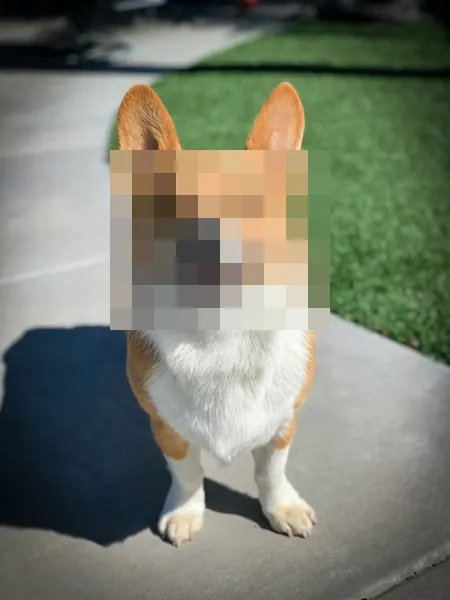
After Example: a face covered using “Box” (sample image, same method processed locally)
How to use
- Open the editor and choose or drop in a photo
- Pick “Mosaic” in the toolbar, choose Brush, Box or Whole image, and set the block size
- Brush over the photo or drag a box; undo any time
- Save it to your device
Three ways to select
Brush: paint over the photo and the painted parts turn into pixel blocks, good for irregular shapes. Box: drag a rectangle and everything inside is pixelated, good for faces and plates. Whole image: the entire picture is pixelated.
Image size limit
The image can have up to 12 megapixels. For a larger one, shrink and download it with Resize first, then upload the smaller image to pixelate.
Pixelating replaces the selected area with large color blocks, and the original detail cannot be recovered from the saved image. In the file you save, the covered parts are just blocks.
Which images work
JPG, PNG and WebP images are supported, up to 50 MB per file and 40 megapixels. Animated images such as GIFs can't be edited; use a still image instead.
Images with a wide-gamut (Display P3) or CMYK color profile open too, with colors converted correctly; CMYK images are limited to 24 megapixels.
FAQ
- Can I get the detail back after pixelating?
- Before saving you can click “Undo” or “Clear”. In a saved image the covered parts are already blocks and the detail can't be recovered, so keep a copy of the original.
- Is my image uploaded?
- No. This tool works on the image right in your browser; it is not sent to our servers or to any other service.
- Does it cost anything?
- This tool is free to use.