Annotate images online
Free
Draw boxes and circles, or add text, on a photo to point things out and explain them. Choose the color and thickness, right in your browser: your image is not uploaded.
Highlights
- Boxes, circles and text
- Six colors (red, yellow, green, blue, white, black) and three sizes
- Dashed lines, undo and redo
- Runs in your browser; your image is not uploaded
- Free to use
Examples

Original 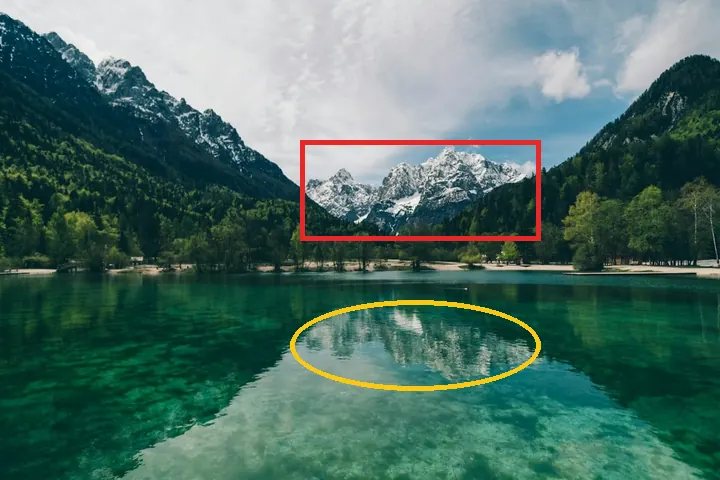
After Example: a red box around the peaks and a yellow circle around the reflection (sample image, same method processed locally)
How to use
- Open the editor and choose or drop in a photo; if it needs rotating, cropping or resizing, do that first
- Pick “Annotate” in the toolbar, choose Box, Circle or Text, then a color and size
- For a box or circle, drag out the area on the photo; for text, click the photo and type
- Download the image from the Annotate tool
What you can do with annotations
Boxes, circles and text stay editable: drag a shape to move it, click inside it to select it, drag a corner handle to resize it and press Delete to remove it. You can also move one forward or back a layer to change which sits on top.
When typing text, press Enter to finish and Shift+Enter for a new line.
Two things to know
Do any rotating, cropping and resizing first and annotate last; if you change those afterwards, the annotations you drew are cleared.
An image with annotations can only be downloaded from the Annotate tool; images exported from other tools do not include them.
Which images work
JPG, PNG and WebP images are supported, up to 50 MB per file and 40 megapixels. Animated images such as GIFs can't be edited; use a still image instead.
Images with a wide-gamut (Display P3) or CMYK color profile open too, with colors converted correctly; CMYK images are limited to 24 megapixels.
FAQ
- Is my image uploaded?
- No. This tool works on the image right in your browser; it is not sent to our servers or to any other service.
- Does it cost anything?
- This tool is free to use.